If you’re searching for practical ways to reduce input lag in games, you’re likely tired of split-second delays costing you fights, missed shots, or clutch plays. In competitive gaming, milliseconds matter. Whether you’re grinding ranked matches, competing in tournaments, or just trying to make your setup feel smoother, understanding what causes input lag—and how to fix it—can dramatically improve your performance.
This article breaks down the core mechanics behind input delay, from hardware bottlenecks and display settings to in-game configurations and network factors. You’ll learn which adjustments actually make a measurable difference and which common “fixes” are mostly hype.
Our guidance is built on tested optimization methods, current esports best practices, and real-world performance benchmarks across popular competitive titles. By the end, you’ll have a clear, actionable plan to fine-tune your setup and gain the responsiveness edge every serious player is chasing.
Why Your Controls Feel Sluggish: Understanding Total System Latency
Total system latency is the FULL chain of delay between pressing a button and seeing the action happen on screen. Think of it like a relay race: your controller, your system, and your display each pass the baton. If one runner is slow, the whole team loses.
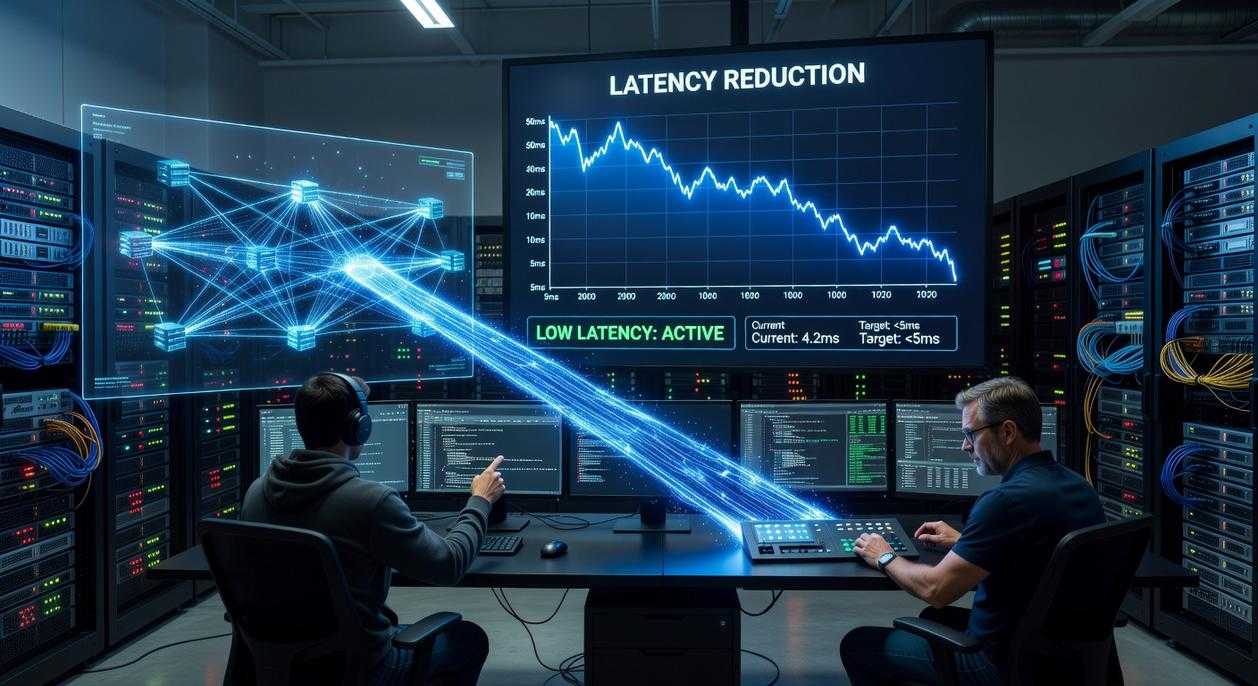
“Input lag” specifically means the time (measured in milliseconds) between your action and the visual result. Even 30–50ms can feel “floaty” in competitive shooters. Pro players often aim for sub-20ms totals (NVIDIA testing shows lower system latency improves reaction outcomes).
Some argue you just need better reflexes. But if Batman had a laggy grappling hook, skill wouldn’t save him.
To reduce input lag in games:
- Use wired peripherals
- Enable game/low-latency mode on your display
- Turn off V-Sync if it adds delay
- Lower graphics settings to stabilize FPS
SMALL tweaks. BIG difference.
Your First Line of Defense: Optimizing Your Gaming Hardware
The Monitor Is King
If your monitor isn’t pulling its weight, your skill ceiling drops instantly. Two terms matter most: response time and input lag. Response time is how fast a pixel changes color (usually measured in milliseconds). Input lag is the delay between your action (clicking) and seeing it happen on screen. They’re related—but not the same.
For competitive play, a 144Hz+ refresh rate (how many times your screen updates per second) and 1ms response time are baseline. At 60Hz, you physically see fewer frames—like watching an action scene with missing panels. Higher refresh rates mean smoother tracking and clearer motion (yes, you really can feel the difference).
Actionable Tip: Open your monitor’s on-screen menu and enable Game Mode or Low Latency Mode. Then disable post-processing features like motion smoothing or dynamic contrast. These look nice for movies, but they add delay. If your goal is to reduce input lag in games, less processing equals faster feedback. Pro tip: Also confirm 144Hz+ is enabled in your OS display settings.
Mouse & Keyboard Polling Rates
Polling rate (Hz) is how often your device reports its position to your PC. At 1000Hz, it updates 1000 times per second. Anything lower introduces micro-delays. Open your mouse software (Logitech G Hub, Razer Synapse, etc.), find “Polling Rate,” and set it to 1000Hz.
Wired vs. Wireless
Old myth: wireless equals lag. Modern tech like Lightspeed or HyperSpeed proves otherwise (even esports pros use them). Still, wired remains the simplest guarantee of minimal delay—no interference, no battery anxiety (and no mid-match panic).
Fine-Tuning Your Machine: In-Game and System-Level Settings
I remember the first time I lost a ranked match because my shots felt “late.” My aim was on point, my reactions were sharp—yet every duel felt like I was half a step behind. The culprit? Settings I hadn’t touched in years.
The V-Sync Trap
V-Sync (Vertical Synchronization) syncs your GPU’s frame output to your monitor’s refresh rate to prevent screen tearing (that ugly horizontal split across your screen). Sounds great—until you realize it can add noticeable input delay by forcing your GPU to wait for the next refresh cycle.
Some players argue tearing is more distracting than latency. Fair. But in competitive games, responsiveness usually matters more. That’s why I recommend disabling V-Sync and, if your monitor supports it, using G-Sync (NVIDIA) or FreeSync (AMD). These adaptive sync technologies dynamically match refresh rates without the same input penalty (NVIDIA, AMD official documentation).
NVIDIA Reflex & AMD Anti-Lag
Next, enable NVIDIA Reflex or AMD Anti-Lag in supported titles. These driver-level technologies reduce the render queue—the number of frames your CPU prepares ahead of your GPU—lowering system latency. In most esports titles, you’ll find Reflex under Video or Advanced Graphics settings. Turn it to “On” or “On + Boost” if available.
The difference? Subtle on paper, noticeable in clutch moments.
Optimizing Graphics Settings
Here’s what I learned the hard way: shadows, post-processing, and ray tracing hit latency harder than texture quality. Lower those first. Also, always use Fullscreen mode. Borderless and Windowed modes pass through the Windows compositor, adding delay (Microsoft documentation).
If you truly want to reduce input lag in games, prioritize stable high FPS over visual flair.
For deeper performance gains, check this guide on how to optimize gaming pc for maximum fps.
Windows-Level Tweaks
Finally, right-click your game’s .exe → Properties → Compatibility → Disable fullscreen optimizations. Then switch Windows Power Plan to High Performance so your CPU isn’t downclocking mid-fight.
Pro tip: Reboot after major changes (it clears lingering driver hiccups). Sometimes the smallest tweaks win the biggest matches.
The Network Factor: Lag vs. Latency
Input lag and network latency get tossed around like they’re the same thing, but they aren’t. Input lag is the delay between pressing a button and seeing the action on your screen; it’s local, tied to your monitor, GPU, and settings. Network latency, often called ping, measures how long data takes to travel from your machine to the game server and back. Think of it as the difference between your reflexes and the internet’s reflexes.
However, here’s where players get confused. High ping can feel exactly like sluggish controls, especially in twitchy shooters or fighting games. You click, your character hesitates, and suddenly you’re blaming your mouse. In reality, the server just hasn’t caught up. It’s like shouting a command in a sci-fi battle and waiting for the comms delay.
So, what should you do? First, always use wired Ethernet. Wi-Fi is convenient, but it’s inconsistent. Second, double-check you’re on the correct server region; that alone can reduce input lag in games by eliminating unnecessary distance. For advanced users, explore Quality of Service settings in your router. Prioritizing gaming traffic can stabilize ping during peak hours. Personally, I’d fix the network before upgrading hardware.
Achieving Peak Responsiveness: Your Action Checklist
You now have the toolkit—so let’s put it to work. Sluggish controls aren’t “just bad internet.” Instead, they’re usually a chain reaction between hardware, software, and display settings.
First, start with quick software wins. Lower in-game graphics presets, disable V-Sync, and update GPU drivers. Then, test in a practice match. If input feels tighter, you’re on the right track. Next, check system settings like mouse polling rate and background apps (yes, even that sneaky browser tab).
| Step | Action | Expected Result |
|---|---|---|
| 1 | Disable V-Sync |
Reduced frame delay |
| 2 | Update drivers | Smoother frame pacing |
| 3 | Close background apps | Lower system latency |
After that, evaluate hardware. A 144Hz+ monitor can dramatically reduce input lag in games by refreshing frames more frequently (think flipping pages faster in a notebook).
Finally, test each change individually. Small tweaks stack into a competitive edge.
Take Control of Your Competitive Edge
You came here to figure out how to gain a real advantage in competitive play—and now you know exactly what’s holding you back. From hardware bottlenecks to in-game settings and network instability, the small delays you’ve been experiencing aren’t “just part of the game.” They’re fixable.
Input delay is one of the most frustrating pain points in gaming. Missed shots, late reactions, and inconsistent performance can cost you ranked matches, tournament placements, and confidence. When you reduce input lag in games, you’re not just improving responsiveness—you’re unlocking your true mechanical potential.
The smartest move now is simple: apply the optimizations covered, audit your current setup, and make incremental upgrades where they matter most. Prioritize high-refresh displays, fine-tune graphics settings, stabilize your connection, and eliminate unnecessary background processes.
If you’re serious about climbing the ladder and dominating your competition, don’t leave performance to chance. Follow proven optimization strategies trusted by competitive players worldwide and start refining your setup today. The difference between average and elite often comes down to milliseconds—take control of yours now.
 Pagesticany Johnson writes the kind of core gaming concepts and mechanics content that people actually send to each other. Not because it's flashy or controversial, but because it's the sort of thing where you read it and immediately think of three people who need to see it. Pagesticany has a talent for identifying the questions that a lot of people have but haven't quite figured out how to articulate yet — and then answering them properly.
They covers a lot of ground: Core Gaming Concepts and Mechanics, Esports and Multiplayer Trends, Expert Insights, and plenty of adjacent territory that doesn't always get treated with the same seriousness. The consistency across all of it is a certain kind of respect for the reader. Pagesticany doesn't assume people are stupid, and they doesn't assume they know everything either. They writes for someone who is genuinely trying to figure something out — because that's usually who's actually reading. That assumption shapes everything from how they structures an explanation to how much background they includes before getting to the point.
Beyond the practical stuff, there's something in Pagesticany's writing that reflects a real investment in the subject — not performed enthusiasm, but the kind of sustained interest that produces insight over time. They has been paying attention to core gaming concepts and mechanics long enough that they notices things a more casual observer would miss. That depth shows up in the work in ways that are hard to fake.
Pagesticany Johnson writes the kind of core gaming concepts and mechanics content that people actually send to each other. Not because it's flashy or controversial, but because it's the sort of thing where you read it and immediately think of three people who need to see it. Pagesticany has a talent for identifying the questions that a lot of people have but haven't quite figured out how to articulate yet — and then answering them properly.
They covers a lot of ground: Core Gaming Concepts and Mechanics, Esports and Multiplayer Trends, Expert Insights, and plenty of adjacent territory that doesn't always get treated with the same seriousness. The consistency across all of it is a certain kind of respect for the reader. Pagesticany doesn't assume people are stupid, and they doesn't assume they know everything either. They writes for someone who is genuinely trying to figure something out — because that's usually who's actually reading. That assumption shapes everything from how they structures an explanation to how much background they includes before getting to the point.
Beyond the practical stuff, there's something in Pagesticany's writing that reflects a real investment in the subject — not performed enthusiasm, but the kind of sustained interest that produces insight over time. They has been paying attention to core gaming concepts and mechanics long enough that they notices things a more casual observer would miss. That depth shows up in the work in ways that are hard to fake.