
Your high-end gaming monitor should give you an edge—not hold you back. Yet most displays ship with default settings tuned for power saving or cinematic color, not the raw speed and clarity competitive gaming demands. If you’re grinding ranked matches or pushing for higher tiers, those small delays and blurry frames can cost you wins. This guide breaks down the best monitor settings for gaming, covering hardware adjustments, GPU tweaks, and in-game optimizations that actually reduce input lag and motion blur. By the end, your display won’t just look better—it will respond faster, turning your setup into a true competitive advantage.
The Foundation: Mastering Your Monitor’s On-Screen Display (OSD)
Your monitor’s On-Screen Display (OSD) is the built-in control panel accessed through the physical buttons on your monitor. Think of it as your display’s BIOS for visuals—the FIRST place you should tweak before touching in-game sliders.
Overdrive / Response Time
Overdrive speeds up pixel transitions (how fast one color changes to another). Faster transitions reduce motion blur. Most monitors offer tiers like Normal, Fast, and Extreme. Here’s the catch: higher isn’t always better. At max settings, many panels produce inverse ghosting—bright trails or “coronas” behind moving objects. Blur Busters’ UFO Test demonstrates this clearly; aggressive overdrive creates visible artifact halos (Blur Busters, Motion Tests). The sweet spot is usually one step below maximum. Pro tip: test while moving dark objects across light backgrounds to spot overshoot quickly.
Game Modes & Presets
Preset modes like FPS or RTS often crush black levels or oversaturate colors. While they may look punchy at first, they can hide detail—exactly what you DON’T want in competitive play. Start with Standard or Custom and build your own profile. (Yes, presets are tempting. So are gas station sunglasses.)
Black Equalizer / Shadow Boost
This setting lifts dark areas without blowing out the whole image. In competitive shooters, that means spotting enemies hiding in corners faster. Multiple esports case studies show improved enemy detection when shadow detail is enhanced (NVIDIA visibility research reports).
Disable Eco-Modes & Dynamic Contrast
Turn OFF any automatic brightness or contrast adjustments. These features constantly shift luminance, causing inconsistent visuals and potential latency fluctuations. Stability equals performance.
Dialing in these controls forms the base of the best monitor settings for gaming—and pairs perfectly with optimizing your choosing right gaming mouse dpi and sensitivity setup.
Unleashing Your GPU: Critical Settings in NVIDIA & AMD Control Panels
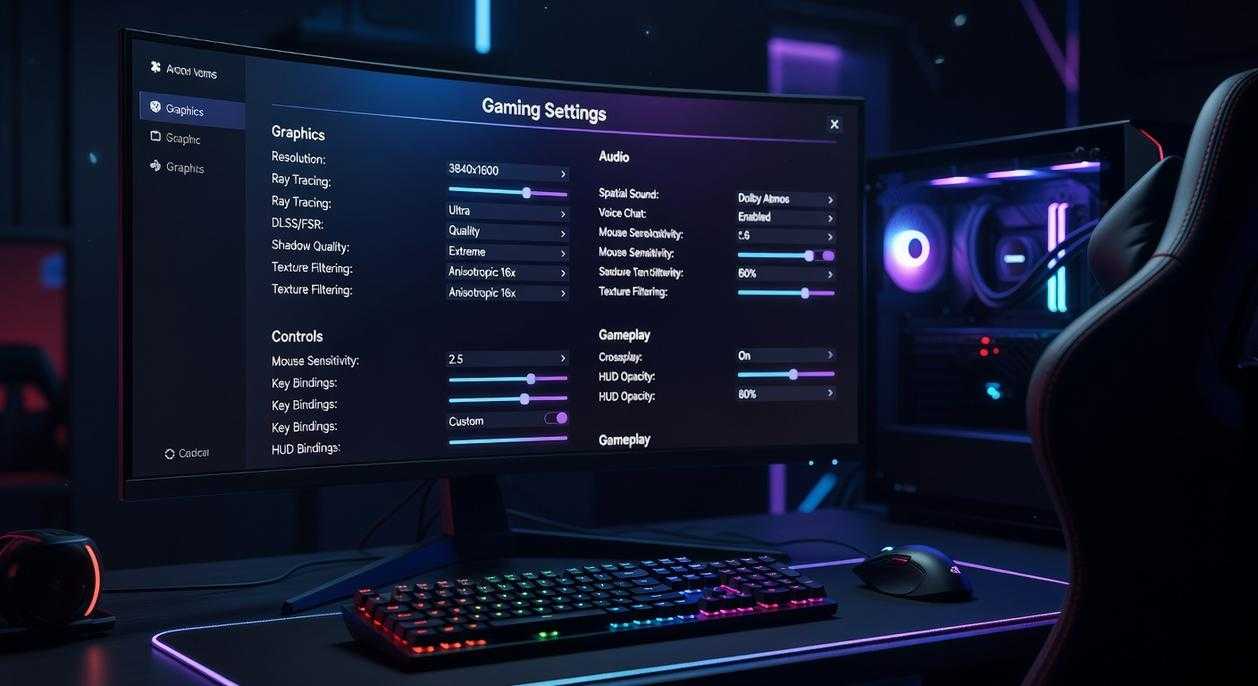
Most gamers upgrade their GPU… and then leave half its performance locked behind default settings. If you’re chasing the best monitor settings for gaming, your control panel matters just as much as your hardware.
Set Your Max Refresh Rate
A refresh rate is how many times per second your monitor updates the image (measured in Hz). A 144Hz display running at 60Hz is like owning a sports car stuck in first gear.
First, check Windows Display Settings → Advanced Display → set the highest refresh rate. Then confirm inside NVIDIA Control Panel or AMD Software under Display. Many competitors forget that Windows updates or driver installs can silently revert this setting. (Yes, even on high-end rigs.)
Enable G-Sync / FreeSync Correctly
Adaptive Sync matches your GPU’s frame output to your monitor’s refresh rate, eliminating screen tearing without adding heavy lag.
Follow this checklist:
- Enable Adaptive Sync in your monitor’s OSD menu
- Enable G-Sync/FreeSync in the GPU control panel (fullscreen mode)
- Turn V-Sync ON in the control panel, but OFF in-game
Some argue V-Sync always adds input lag. That was true years ago. Modern driver-level V-Sync, paired with Adaptive Sync, prevents tearing at the refresh ceiling without noticeable delay.
Low Latency Mode
NVIDIA’s Ultra-Low Latency Mode (NULL) and AMD Anti-Lag reduce the render queue—the number of pre-rendered frames waiting for display. Fewer queued frames mean faster response to mouse clicks. For competitive shooters, set this to On or Ultra. Pro tip: avoid Ultra if your system already struggles with frame pacing.
Digital Vibrance / Saturation
Adjusting saturation in the GPU panel enhances visibility without distorting calibration profiles. Slightly increasing Digital Vibrance (NVIDIA) or Saturation (AMD) makes enemies “pop” from darker environments. It’s subtle—but in esports, subtle wins rounds.
The Final Mile: Essential In-Game Video Settings
Think of your PC like a sports car. You can install the best engine in the world, but if you’re driving with the parking brake half-engaged, you’re not getting peak performance. That “parking brake” is often your in-game video settings.
Display Mode – Fullscreen Is King
First, set your game to Exclusive Fullscreen. This mode gives the game direct control over your display, like giving the driver full access to the steering wheel. In contrast, Borderless or Windowed modes force Windows to sit between your game and monitor, adding extra input lag. It may feel subtle, but in competitive play, milliseconds matter (just ask any esports pro).
Resolution and Aspect Ratio
Next, always use your monitor’s native resolution—the exact pixel count it was built for. Running a lower resolution on a higher-res screen forces scaling, which stretches the image like resizing a low-res meme. The result? Blur and added latency. Stick to native for maximum clarity and responsiveness.
V-Sync – The Enemy of Response Time
If you have G-Sync or FreeSync enabled in your GPU control panel, turn V-Sync OFF in-game. In-game V-Sync forces the engine to wait for the monitor’s refresh cycle, increasing input lag. It’s like waiting for a green light when the road is already clear.
Framerate Limiter
Finally, cap your FPS 3–5 frames below your monitor’s max refresh rate (for example, 141 FPS on 144Hz). This keeps Adaptive Sync active and prevents lag spikes from slamming into the engine’s V-Sync ceiling. Think of it as cruising just under the speed limit for the smoothest ride.
Dial these in, and you’re much closer to the best monitor settings for gaming.
From Default Settings to Dominating the Game
You came here to eliminate delay, blur, and inconsistency—and now you’ve dialed in the three pillars that matter most: your monitor’s OSD, your GPU driver settings, and your in-game video options. The frustrating gap between your reaction and what happens on screen is gone. In its place? Crisp visuals and instant feedback that feel locked to your inputs.
By applying the best monitor settings for gaming, you’ve moved beyond default limitations and into true competitive performance. Don’t let outdated settings hold you back again.
Take action: double-check your setup, lock in these optimizations, and jump into your next match with confidence. Fine margins win games—make sure you’re playing at your absolute peak.
 Pagesticany Johnson writes the kind of core gaming concepts and mechanics content that people actually send to each other. Not because it's flashy or controversial, but because it's the sort of thing where you read it and immediately think of three people who need to see it. Pagesticany has a talent for identifying the questions that a lot of people have but haven't quite figured out how to articulate yet — and then answering them properly.
They covers a lot of ground: Core Gaming Concepts and Mechanics, Esports and Multiplayer Trends, Expert Insights, and plenty of adjacent territory that doesn't always get treated with the same seriousness. The consistency across all of it is a certain kind of respect for the reader. Pagesticany doesn't assume people are stupid, and they doesn't assume they know everything either. They writes for someone who is genuinely trying to figure something out — because that's usually who's actually reading. That assumption shapes everything from how they structures an explanation to how much background they includes before getting to the point.
Beyond the practical stuff, there's something in Pagesticany's writing that reflects a real investment in the subject — not performed enthusiasm, but the kind of sustained interest that produces insight over time. They has been paying attention to core gaming concepts and mechanics long enough that they notices things a more casual observer would miss. That depth shows up in the work in ways that are hard to fake.
Pagesticany Johnson writes the kind of core gaming concepts and mechanics content that people actually send to each other. Not because it's flashy or controversial, but because it's the sort of thing where you read it and immediately think of three people who need to see it. Pagesticany has a talent for identifying the questions that a lot of people have but haven't quite figured out how to articulate yet — and then answering them properly.
They covers a lot of ground: Core Gaming Concepts and Mechanics, Esports and Multiplayer Trends, Expert Insights, and plenty of adjacent territory that doesn't always get treated with the same seriousness. The consistency across all of it is a certain kind of respect for the reader. Pagesticany doesn't assume people are stupid, and they doesn't assume they know everything either. They writes for someone who is genuinely trying to figure something out — because that's usually who's actually reading. That assumption shapes everything from how they structures an explanation to how much background they includes before getting to the point.
Beyond the practical stuff, there's something in Pagesticany's writing that reflects a real investment in the subject — not performed enthusiasm, but the kind of sustained interest that produces insight over time. They has been paying attention to core gaming concepts and mechanics long enough that they notices things a more casual observer would miss. That depth shows up in the work in ways that are hard to fake.